Executive Summary: Kubernetes does not have a kubectl restart pod command, but that does not mean you are stuck when a pod needs to be recycled. Instead, Kubernetes exposes several higher-level mechanisms that let you restart pods safely, with or without downtime, depending on your situation. The right method depends on whether your pod is deployment-managed, how much traffic it is serving, and whether you need a clean-slate restart or a rolling one.
TL;DR
- No native command: kubectl restart pod does not exist. Use one of five workarounds instead.
- Best default: kubectl rollout restart deployment/name gives you zero downtime, rolling replacement, and is the safest option for production.
- Quick pod fix: kubectl delete pod pod-name causes Kubernetes to recreate it automatically if it is managed by a controller.
- Full stop/start: Scale to 0 replicas then back up. Use only when you need every pod simultaneously replaced.
- Config-triggered restart: Update an environment variable on the deployment. Kubernetes treats it as a spec change and rolls new pods.
- Monitor first: Restarting without knowing the root cause is a band-aid. Use real-time pod monitoring to act on evidence, not instinct.
When should you restart a kubernetes pod?
Restarting a pod is not always the right move. Do it without understanding the root cause and you risk masking a deeper problem that will resurface minutes later. That said, there are clear, legitimate scenarios where a restart is the correct action.
If you want to go deeper on diagnosing pod problems before you restart, our guide on Kubernetes troubleshooting techniques covers the full diagnostic workflow.
1. Configuration changes are not being picked up
Pods load environment variables, ConfigMaps, and Secrets at startup. Updating these values at runtime does not automatically propagate into running pods. You need a restart for the new config to take effect.
2. The pod is stuck in a non-functional state
A pod may report Running to the Kubernetes control plane while its internal application process has deadlocked, leaked memory, or stalled. Health probes help catch this, but a targeted restart can clear the condition while you investigate further.
🐳For more in-depth analysis of pod failures, check out our guide on Exit Code 137 in Kubernetes: Causes, Diagnosis, and Fixes.
3. Recovering after an OOM (Out of Memory) kill
If a container is terminated due to memory exhaustion, Kubernetes may restart it automatically depending on the restart policy. If you have adjusted resource limits or patched the underlying cause, a manual restart ensures the new limits apply cleanly.
Effective debugging often starts with understanding application logs. Learn how to tail kubectl logs in real-time.
4. Forcing a fresh image pull
If you are using the latest tag (generally not recommended) and a new image layer was pushed, the running pod will not automatically pick it up. A restart forces Kubernetes to re-evaluate the image pull policy.
5. Debugging a non-reproducing issue
Sometimes temporary state like a corrupted in-memory cache, a stuck goroutine, or a lingering file handle causes misbehavior that a clean restart can resolve. Treat this as a first-response action, not a root-cause fix.
⚠️ Do not restart without a reason. Unplanned or frequent restarts can mask application bugs, introduce brief traffic gaps, and trigger cascading failures in dependent services. Always check pod logs and metrics before deciding to restart. Learn how to catch deployment issues early to prevent many of these problems before they happen.
What are the different pod states in kubernetes?
Understanding pod states helps you decide the right action. Knowing how to monitor your application health alongside pod states gives you the full picture. Here is the full lifecycle:
Pending: Pod accepted by Kubernetes, but containers are not yet running. The scheduler is looking for a suitable node, or the container image is still being pulled. A pod stuck here for more than a few minutes usually signals a resource or configuration issue.
Running: At least one container is active. The pod may still be misbehaving at the application level. Running does not guarantee your application is healthy.
Succeeded: All containers exited with code 0. Typical for batch jobs or one-time tasks. No restart needed.
Failed: One or more containers exited with a non-zero code. Check logs before restarting. There is almost always an application or config error behind this state.
Unknown: The node hosting the pod lost contact with the Kubernetes API server. Usually, a node-level or network issue. Investigate node health before restarting the pod.
Two additional statuses worth knowing:
- CrashLoopBackOff: The container keeps crashing, and Kubernetes keeps retrying with exponential backoff. This is almost always an application or configuration bug, not a reason to keep restarting manually.
- Terminating: The pod is being deleted but has not fully shut down. Stuck terminating pods usually point to a finalizer issue or an unresponsive container. Use –force –grace-period=0 only as a last resort.
Instead of reacting to a failing pod, ⚠️ learn how to get ahead of the problem. Our guide on how to catch deployment issues can help you prevent many of these problems before they ever happen.
5 methods to restart pods using kubectl
None of the methods below use a single restart command because Kubernetes does not have one. In every case, you are signaling to Kubernetes that the desired state has changed, and it reconciles by creating new pods. A solid understanding of kubectl commands will help you work through each method confidently.
Method 1: kubectl rollout restart (Recommended)
Best for: Any deployment-managed pods in production or staging. This is the closest Kubernetes gets to a native restart command.
This command annotates the deployment’s pod template with a timestamp, causing Kubernetes to treat it as a configuration change. It then performs a rolling update, replacing pods one at a time according to your deployment’s maxUnavailable and maxSurge settings, ensuring zero downtime throughout.
Restart a deployment:
kubectl rollout restart deployment/my-appRestart within a specific namespace:
kubectl rollout restart deployment/my-app -n productionMonitor rollout progress:
kubectl rollout status deployment/my-appRoll back if something goes wrong:
kubectl rollout undo deployment/my-appℹ️ What happens under the hood: Kubernetes sends SIGTERM to each existing pod. If your container handles graceful shutdown, it exits with exit code 143, confirming the restart completed cleanly. If it does not respond within the terminationGracePeriodSeconds window, Kubernetes force-kills it and you will see exit code 137. Watching for these codes tells you whether your pods are shutting down cleanly.
⚠️ Minimum version: kubectl rollout restart requires kubectl 1.15 or newer. If you get an “unknown command” error, your binary is outdated. Run kubectl version to check and upgrade if needed.
You can also apply this to other controllers:
kubectl rollout restart daemonset/my-daemon
kubectl rollout restart statefulset/my-statefulset
For a deeper understanding of how Kubernetes manages application lifecycles and automated updates, see our guide on Kubernetes Operators.
Method 2: Delete Individual Pods
Best for: Quickly recycling a single misbehaving pod when you do not need a full rolling restart. Works on any pod managed by a controller.
Kubernetes is declarative and always tries to match actual state to desired state. When you delete a pod that is part of a Deployment, ReplicaSet, or StatefulSet, the controller immediately notices and schedules a replacement. The new pod will have a different name.
Delete a single pod:
kubectl delete pod <pod-name>Delete multiple pods at once:
kubectl delete pod pod-a pod-b pod-cDelete all pods matching a label:
kubectl delete pod -l app=my-app -n productionForce delete a stuck pod (last resort only):
kubectl delete pod <pod-name> --grace-period=0 --force🚨 Critical: Never delete a standalone pod that is not managed by a controller. Without a Deployment or ReplicaSet, Kubernetes will not recreate it and the pod will be gone permanently. Run the following command to check ownership before deleting:
kubectl get pod <pod-name> -o jsonpath='{.metadata.ownerReferences}'Method 3: Scale Replicas to Zero and Back Up
Best for: Dev and staging environments, or when you need every pod to be simultaneously replaced with fresh instances. Not recommended for production without a maintenance window.
Scaling to zero terminates every running pod in the deployment instantly. Scaling back up creates brand-new pods from the current pod template spec. All in-memory state is lost and there will be a service gap between the two operations.
Step 1: Check the current replica count:
kubectl get deployment my-appStep 2: Scale down to zero:
kubectl scale deployment my-app --replicas=0Step 3: Verify all pods are gone:
kubectl get pods -l app=my-appStep 4: Scale back up:
kubectl scale deployment my-app --replicas=3⚠️ This method causes a full service outage between the scale-down and scale-up steps. Use kubectl rollout restart instead whenever uptime matters.
Method 4: Update an Environment Variable to Trigger a Rolling Restart
Best for: CI/CD pipelines, automation scripts, or when you want an auditable restart trail without changing application config.
Any change to a deployment’s pod template spec triggers a rolling update. Modifying an environment variable is the simplest way to do this without touching your actual application configuration. A common pattern is injecting a timestamp as a dummy variable, which creates a traceable restart reason in your deployment history.
Inject a restart timestamp:
kubectl set env deployment/my-app RESTART_TRIGGER=$(date +%s)Or edit the deployment directly:
kubectl edit deployment/my-appThen add or modify any environment variable in the editor. Kubernetes will roll new pods automatically.
💡 Why this works well in CI/CD: Every restart triggered this way is visible in kubectl rollout history with a timestamp, making post-incident reviews and compliance audits straightforward.
Method 5: Manually Replace a Pod
Best for: Standalone pods that are not managed by a Deployment or controller. Rarely needed in well-designed clusters.
This method exports the running pod’s YAML spec, deletes the pod, and recreates it from that spec. Use it only when no higher-level controller manages the pod. Otherwise, the controller will simultaneously create a replacement, resulting in duplicate pods.
Export spec, delete, and recreate:
kubectl get pod <pod-name> -o yaml > pod-backup.yaml
kubectl delete pod <pod-name>
kubectl apply -f pod-backup.yaml
Or use force replace in one step:
kubectl get pod <pod-name> -o yaml | kubectl replace --force -f -🚨 Downtime warning: The old pod is deleted before the new one starts. There is no overlap period. Do not use this method on pods serving live traffic unless you have an explicit maintenance window.
Method Comparison Table
| Method | Zero Downtime | Works On | Use When |
|---|---|---|---|
| rollout restart | Yes | Deployments, DaemonSets, StatefulSets | Default choice for any production restart |
| delete pod | Brief gap | Controller-managed pods only | Single misbehaving pod, quick fix needed |
| scale to 0 | No | Deployments | Dev/staging, need total clean restart |
| update env var | Yes | Deployments | CI/CD automation, auditable restarts |
| manual replace | No | Standalone pods only | Pods with no controller |
Best practices for restarting kubernetes pods
- Default to kubectl rollout restart for any deployment-managed workload. It is the safest, most observable, and most reversible option.
- Always check logs before restarting. Run kubectl logs pod-name –previous to see why the last container exited. Restarting without understanding the cause may loop indefinitely. Our guide on tailing kubectl logs in real time shows you exactly what to look for.
- Configure liveness and readiness probes. Kubernetes will automatically restart containers that fail liveness checks, reducing the need for manual intervention.
- Set resource requests and limits. Pods without memory limits can balloon until the node OOM-kills them. This is one of the most common causes of unexpected restarts. If you are seeing memory leaks in your pods, address those before restarting.
- Tune maxUnavailable and maxSurge in your deployment strategy to control how aggressively rolling restarts proceed.
- Monitor restart counts. A high RESTARTS number in kubectl get pods is a signal for a deeper issue. Do not ignore it.
- Avoid force-deleting pods unless absolutely necessary. This bypasses shutdown hooks and can leave orphaned state in distributed systems.
- Do not restart during peak traffic unless you have confirmed the rolling restart strategy maintains full capacity throughout.
Monitoring kubernetespods with Middleware
The best time to decide whether to restart a pod is before you have to guess. Real-time observability removes the guesswork by surfacing exactly what a pod is doing, including CPU saturation, memory growth, error rate spikes, and restart counts, before those signals become incidents.
Without proper monitoring, you may overlook the early warning signs that lead to pod failures in the first place. Our guide to monitoring Kubernetes applications with Middleware walks through the full observability setup. For a broader view of available tools, see our Kubernetes monitoring tools comparison.
Middleware provides a Kubernetes-native monitoring layer that gives you:
- Per-pod CPU and memory usage with historical trends
- Restart count tracking with timestamps and reasons
- Network traffic and error rates per pod and namespace
- Container health status correlated with application logs
- Custom alerting when a pod crosses defined thresholds
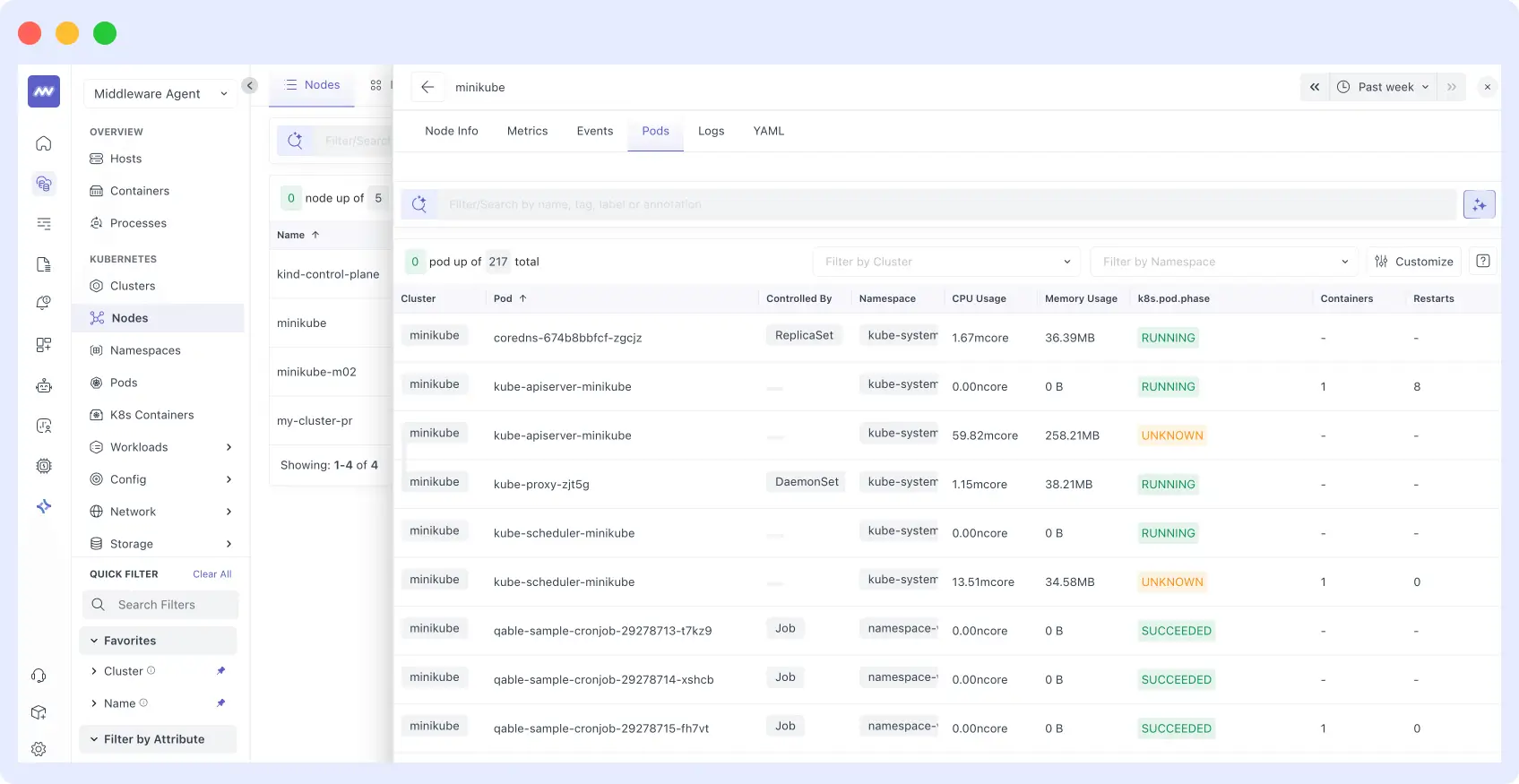
Proper pod monitoring is also a core part of broader Kubernetes observability, which goes beyond metrics to include logs and distributed traces across your entire cluster.
🔍 Instead of reacting to a failing pod, use real-time monitoring to spot the root cause. Middleware provides comprehensive metrics and alerts to prevent issues before they happen. Get a Demo or Start Free Trial
How to set up Middleware in your cluster
Middleware deploys as a DaemonSet agent inside your cluster, collecting metrics and forwarding them to a centralized dashboard. The full setup is covered in the official Kubernetes agent documentation. Setup takes under five minutes using Helm, bash, or a Windows batch script.
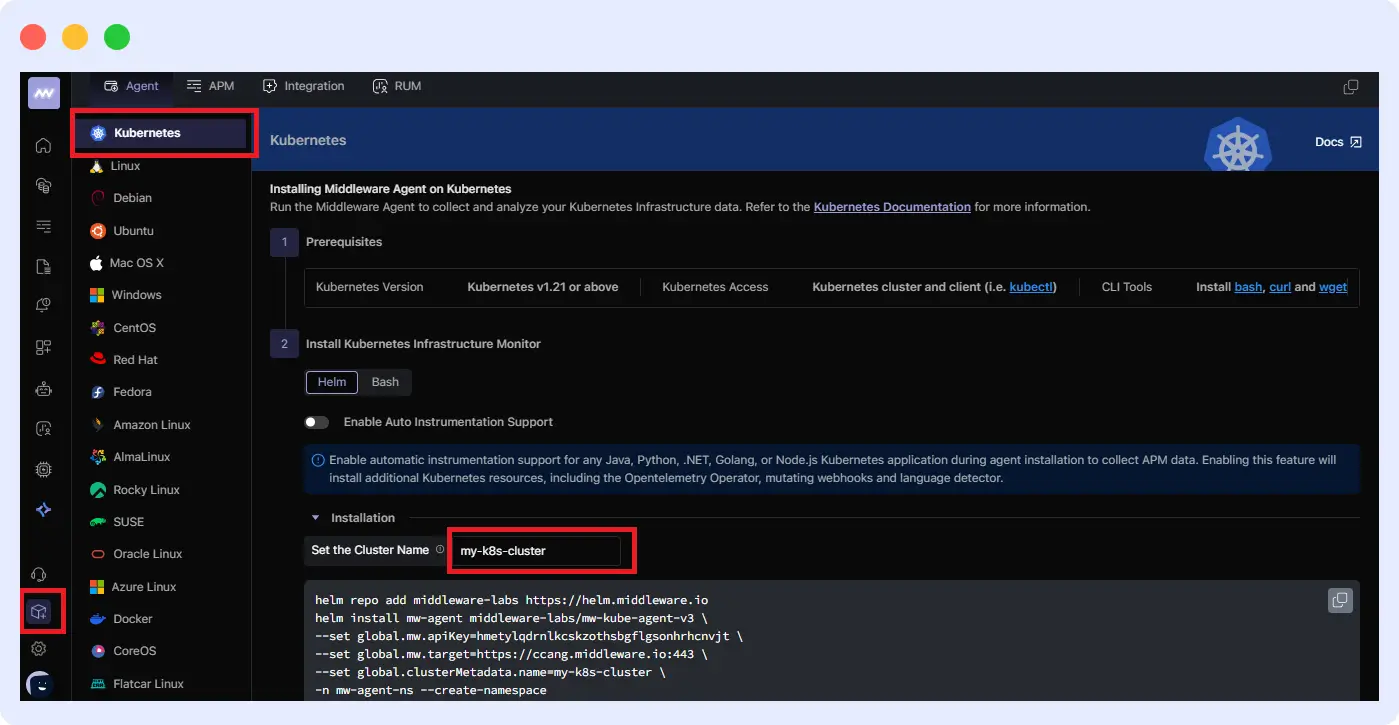
Install via Helm:
helm repo add middleware-labs https://helm.middleware.io

helm install mw-agent middleware-labs/mw-kube-agent-v3 \
  --set mw.apiKey=<MW_API_KEY> \
  --set mw.target=https://<MW_UID>.middleware.io:443 \
  --set clusterMetadata.name=<your-cluster-name> \
  -n mw-agent-ns --create-namespace
Install via Bash:
MW_API_KEY="" MW_TARGET=https://<MW_UID>.middleware.io:443 \
bash -c "$(curl -L https://install.middleware.io/scripts/mw-kube-agent-install-v3.sh)"
Verify the agent is running:
kubectl get daemonset/mw-kube-agent -n mw-agent-ns
kubectl get deployment/mw-kube-agent -n mw-agent-ns
Once running, set up custom alerts to notify your team when a pod restarts more than a set number of times in a rolling window, or when memory usage crosses a defined threshold. This eliminates the need to manually poll pod status.
For a broader understanding of what good observability looks like across your entire stack, see our guide on Kubernetes logging and observability best practices.
📦 Deploy in Minutes, Gain Insights Instantly Middleware agent installs in minutes, giving you instant visibility into your pod health, resource usage, and application logs. Install Agent Now | Get Started with Free Monitoring
FAQs
Is there a kubectl restart pod command?
No. Kubernetes does not have a native kubectl restart pod command. Because pods are designed to be ephemeral and replaced rather than rebooted, Kubernetes exposes mechanisms like kubectl rollout restart that operate on the controller such as a Deployment or StatefulSet, rather than on individual pods directly.
What is the safest way to restart all pods in a deployment?
Use kubectl rollout restart deployment/name. This performs a rolling update that replaces pods one at a time, keeping your application available throughout. It respects your deployment’s maxUnavailable and maxSurge settings and can be monitored with kubectl rollout status or rolled back instantly with kubectl rollout undo.
What happens when I delete a Kubernetes pod?
If the pod is managed by a controller such as a Deployment, ReplicaSet, StatefulSet, or DaemonSet, Kubernetes automatically creates a replacement with the same spec but a new name. If the pod is standalone with no ownerReferences, deleting it removes it permanently and Kubernetes will not recreate it.
How do I restart a pod in a specific namespace?
Add the -n namespace flag to any kubectl command. For example: kubectl rollout restart deployment/my-app -n production. To list pods across all namespaces, use kubectl get pods –all-namespaces.
How do I restart a Kubernetes service?
A Kubernetes Service is a networking abstraction with no runtime state to restart. To refresh the application behind a service, target the underlying Deployment using kubectl rollout restart deployment/deployment-name.
My pod is stuck in Terminating. How do I force delete it?
Run kubectl delete pod pod-name –grace-period=0 –force. Use this only as a last resort because it bypasses shutdown hooks and can leave orphaned resources. Investigate why the pod got stuck before force-deleting.
How do I check why a pod keeps restarting?
Start with kubectl describe pod pod-name and look at the Events section and Last State exit code. Then run kubectl logs pod-name –previous to see the crashed container’s logs. Exit code 137 means OOM kill or SIGKILL. Exit code 1 usually means an application error. Exit code 143 means a graceful SIGTERM shutdown. For more context on these codes, see our guides on exit code 137 and exit code 143.
What is the difference between a rolling restart and deleting a pod?
A rolling restart replaces pods gradually. New pods become ready before old ones are terminated, so traffic is never fully dropped. Deleting a pod triggers immediate replacement but does not guarantee overlap. The new pod may take seconds or minutes to become ready, creating a brief capacity reduction that can cause downtime for single-replica deployments.
